> ## Documentation Index
> Fetch the complete documentation index at: https://docs.xquiz.com.br/llms.txt
> Use this file to discover all available pages before exploring further.
# Variable
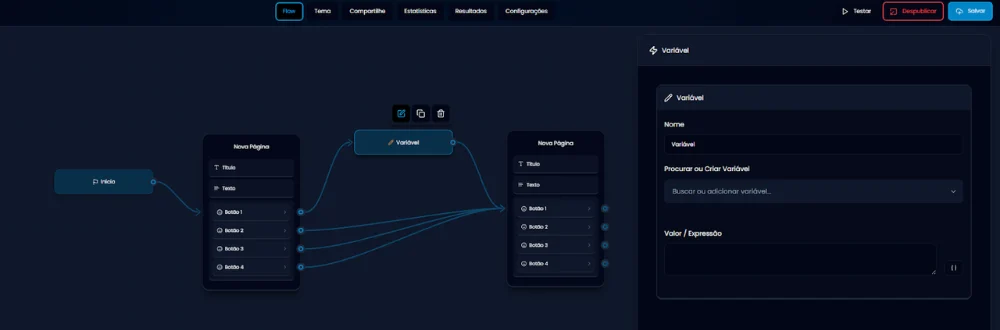 Variables are one of the most powerful (and at the same time least understood) resources within XQuiz, but understanding how to use them will unlock a new level of personalization and automation for your funnel.
### What are variables?
In XQuiz, a variable is like a box where you store information that the user provided during the quiz.
**This information can be used:**
* To send data to external tools (like RD Station or ActiveCampaign).
* To personalize quiz content (like showing the person's name in a sentence).
* To create conditional logic (like showing a specific result based on responses).
**Practical usage examples**
* Capture name, email, or phone and send to your CRM.
* Store information like interest = weight loss and use it later to show a specific product.
* Sum points based on responses and, at the end, display a personalized result for that user profile.
### How to create a variable in XQuiz (step by step)
* Add the "Variable" function to the Flow.
* Click the edit icon.
* In the right sidebar panel, go to the "Search or Create variable" field.
* Type the name you want to give to the variable (e.g., name, email, result).
* Click the option that will appear below with the text "Create Variable".
* In the "Name" field, write the same name again. This helps maintain organization and easily identify this variable in the Flow.
### How to use variables in the points system
Example:
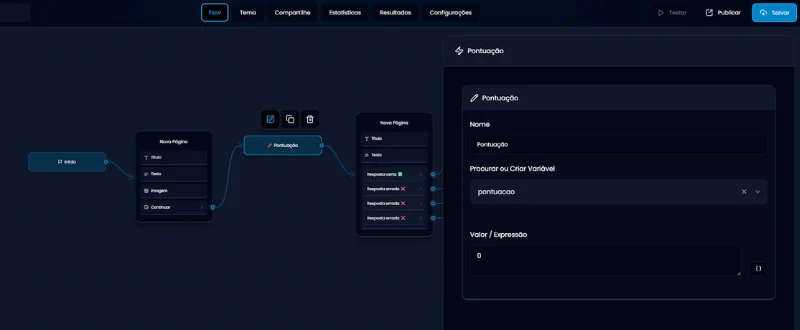
Imagine you're creating a game where you need to store the player's score. You can create a variable called score and assign an initial value, like 0.
score = 0
Variables are one of the most powerful (and at the same time least understood) resources within XQuiz, but understanding how to use them will unlock a new level of personalization and automation for your funnel.
### What are variables?
In XQuiz, a variable is like a box where you store information that the user provided during the quiz.
**This information can be used:**
* To send data to external tools (like RD Station or ActiveCampaign).
* To personalize quiz content (like showing the person's name in a sentence).
* To create conditional logic (like showing a specific result based on responses).
**Practical usage examples**
* Capture name, email, or phone and send to your CRM.
* Store information like interest = weight loss and use it later to show a specific product.
* Sum points based on responses and, at the end, display a personalized result for that user profile.
### How to create a variable in XQuiz (step by step)
* Add the "Variable" function to the Flow.
* Click the edit icon.
* In the right sidebar panel, go to the "Search or Create variable" field.
* Type the name you want to give to the variable (e.g., name, email, result).
* Click the option that will appear below with the text "Create Variable".
* In the "Name" field, write the same name again. This helps maintain organization and easily identify this variable in the Flow.
### How to use variables in the points system
Example:
Imagine you're creating a game where you need to store the player's score. You can create a variable called score and assign an initial value, like 0.
score = 0
 During the game, when the player scores points, you can update the score variable's value with the new value.
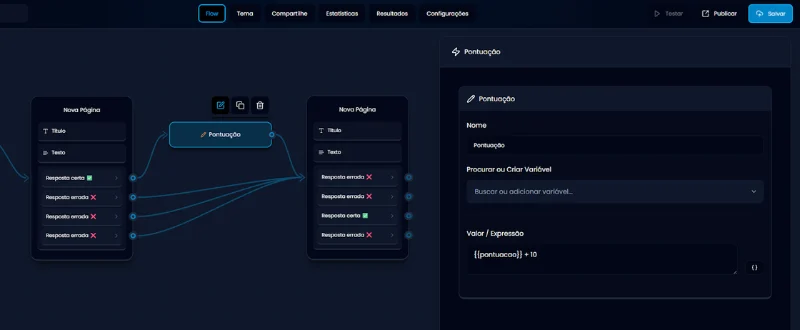
 **This tells the system:**
"Take the current value of the score and add 10 more."
The score value is now 10.
To insert a variable correctly, click the button with the {} icon in the corner of the field. This opens a small list with all created variables.
Click on the desired variable, and it will be added in the correct format, for example:
**This tells the system:**
"Take the current value of the score and add 10 more."
The score value is now 10.
To insert a variable correctly, click the button with the {} icon in the corner of the field. This opens a small list with all created variables.
Click on the desired variable, and it will be added in the correct format, for example:
 Always separate elements with space, as in the example below:
The expression field can perform simple mathematical operations, such as plus, minus, times, and divide (+, -, \*, /).
**Important tips!**
* Use simple names without spaces. Ex: email, phone, score.
Always separate elements with space, as in the example below:
The expression field can perform simple mathematical operations, such as plus, minus, times, and divide (+, -, \*, /).
**Important tips!**
* Use simple names without spaces. Ex: email, phone, score.