> ## Documentation Index
> Fetch the complete documentation index at: https://docs.xquiz.com.br/llms.txt
> Use this file to discover all available pages before exploring further.
# Folders
> Organize your funnels with our folders
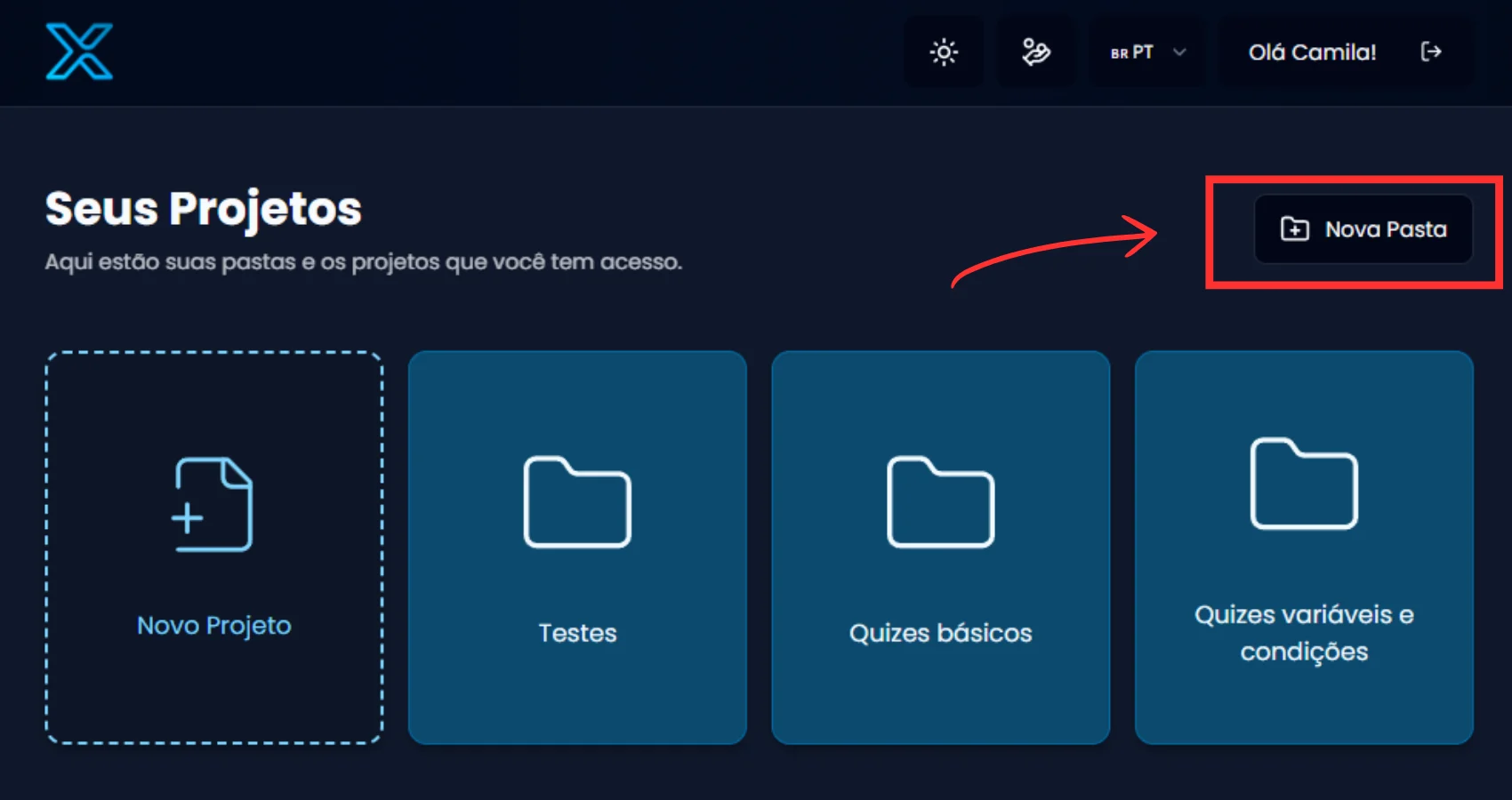 If you work with multiple quizzes and funnels, keeping everything organized is essential and XQuiz makes this easy with the "New Folder" button, as shown in the image above.
**What is it for?**
Creating a folder helps organize your funnels within the platform. This way, you can group quizzes by campaign, client, niche, or strategy, as you prefer.
**How to use**
* Click the "New Folder" button.
* Give your folder a name (e.g., "Black Friday Campaign" or "WhatsApp Funnels").
* Done! Now you can move your funnels into this folder.
**Important tip!**
Using folders is not mandatory, but if you have more than 3 or 4 funnels, this will make your life much easier when locating and managing your funnels.
## How to move your funnels into folders
If you work with multiple quizzes and funnels, keeping everything organized is essential and XQuiz makes this easy with the "New Folder" button, as shown in the image above.
**What is it for?**
Creating a folder helps organize your funnels within the platform. This way, you can group quizzes by campaign, client, niche, or strategy, as you prefer.
**How to use**
* Click the "New Folder" button.
* Give your folder a name (e.g., "Black Friday Campaign" or "WhatsApp Funnels").
* Done! Now you can move your funnels into this folder.
**Important tip!**
Using folders is not mandatory, but if you have more than 3 or 4 funnels, this will make your life much easier when locating and managing your funnels.
## How to move your funnels into folders
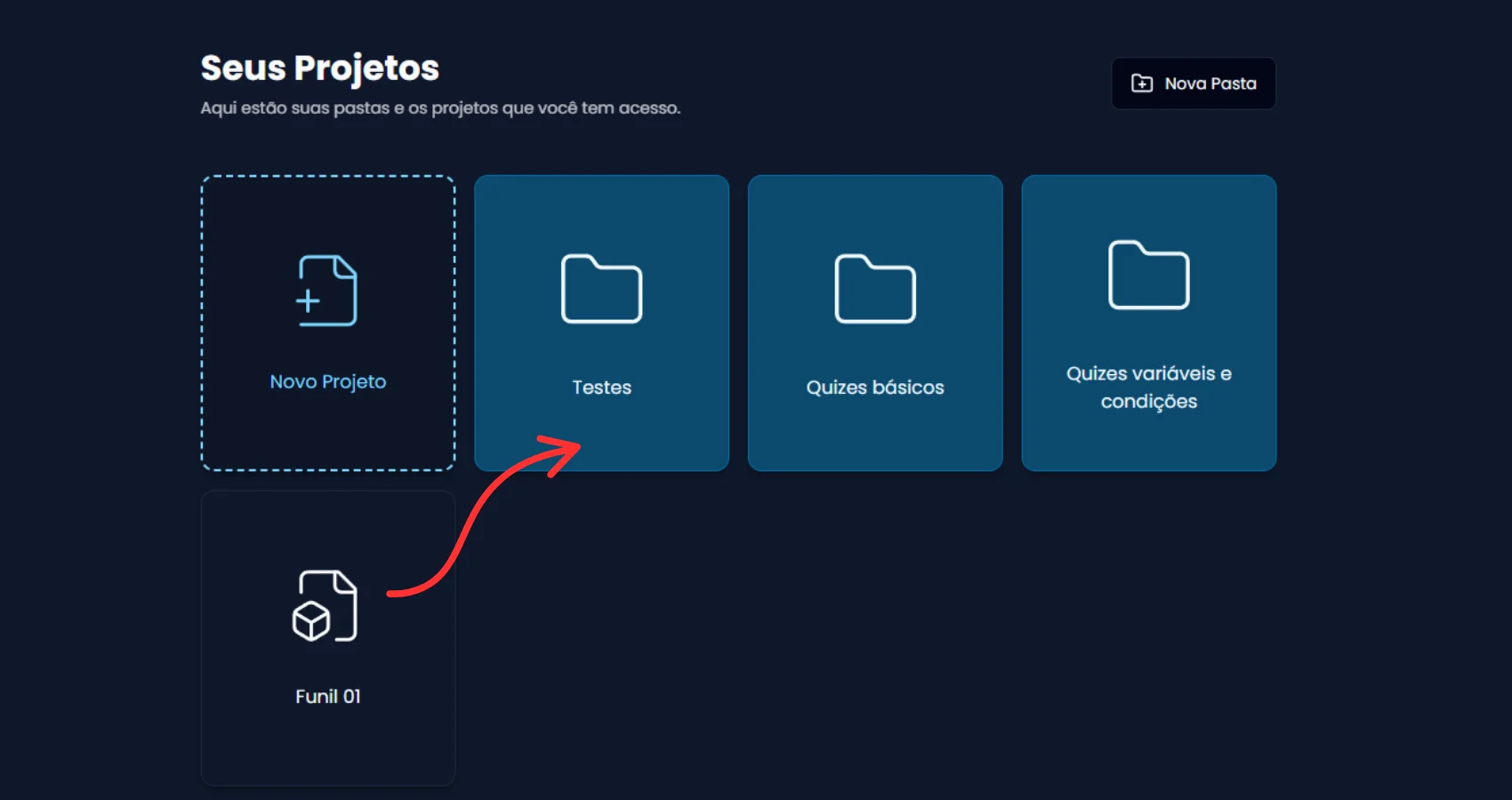 After you create a folder, it's very easy to organize your funnels inside it. Here's how to do it:
* Click and hold on the funnel you want to move.
* Drag it to the desired folder.
* When the folder becomes highlighted, drop the funnel on top of it.
Done! The funnel will be automatically moved into the folder.
You can repeat this process as many times as you want and organize everything in a simple and visual way, just like dragging files on your computer.
## How to remove a funnel from inside a folder
After you create a folder, it's very easy to organize your funnels inside it. Here's how to do it:
* Click and hold on the funnel you want to move.
* Drag it to the desired folder.
* When the folder becomes highlighted, drop the funnel on top of it.
Done! The funnel will be automatically moved into the folder.
You can repeat this process as many times as you want and organize everything in a simple and visual way, just like dragging files on your computer.
## How to remove a funnel from inside a folder
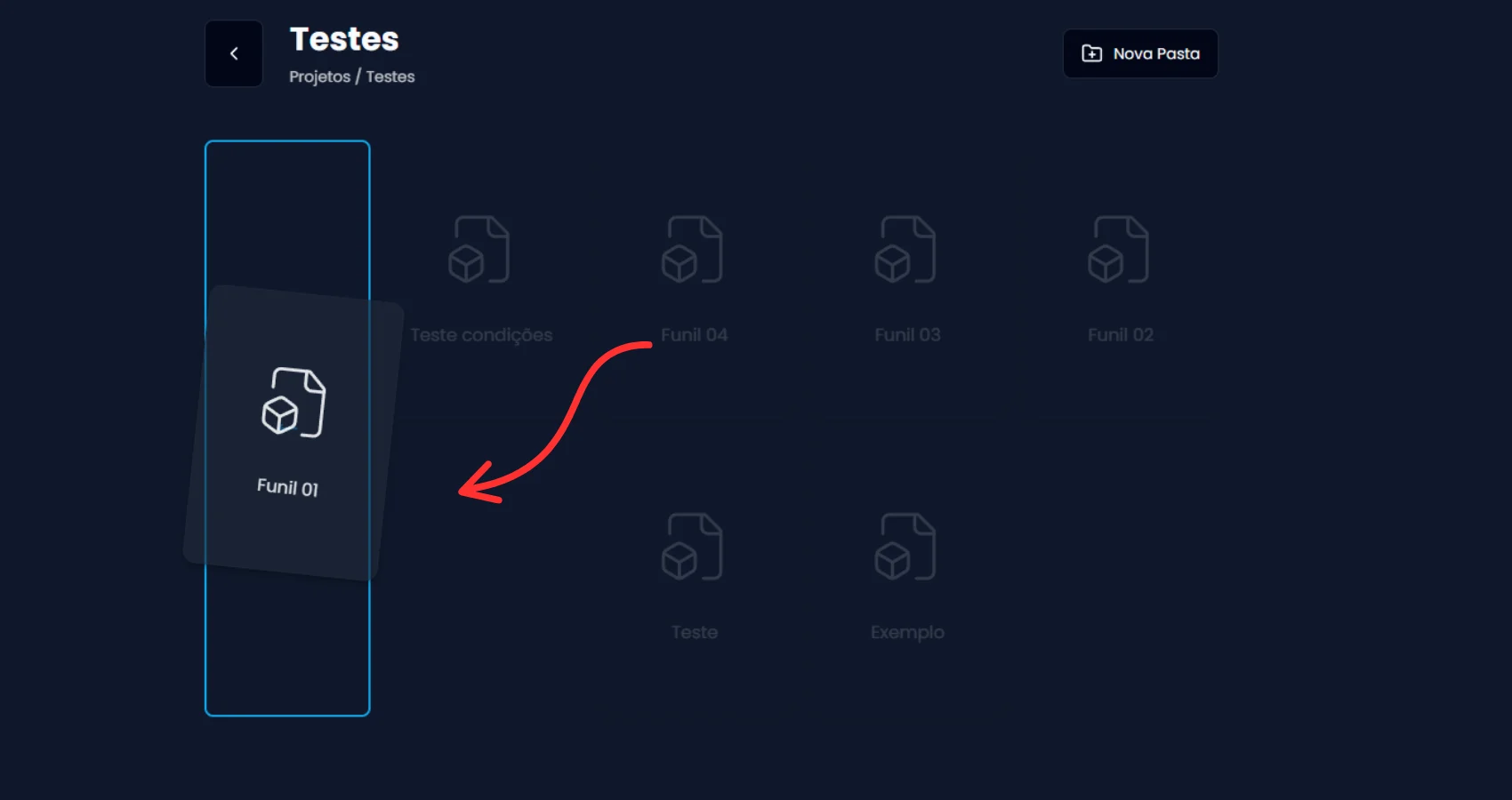 If you put a funnel inside a folder and then want to remove it, the process is very simple and works with the same drag and drop system.
**Here's how to do it**
* Enter the folder where the funnel is located (just click on it).
* Locate the funnel you want to move back.
* Click, hold, and drag the funnel to the left side of the screen.
* When a blue rectangle appears, it means that's the right place to drop.
* Drop the funnel inside that rectangle.
Done! The funnel will be removed from the folder and return to the main funnels page.
**Important to know!**
This doesn't delete the funnel, it just changes its position.
You can move funnels as many times as you want between folders or out of them.
## Editing or deleting a folder
If you put a funnel inside a folder and then want to remove it, the process is very simple and works with the same drag and drop system.
**Here's how to do it**
* Enter the folder where the funnel is located (just click on it).
* Locate the funnel you want to move back.
* Click, hold, and drag the funnel to the left side of the screen.
* When a blue rectangle appears, it means that's the right place to drop.
* Drop the funnel inside that rectangle.
Done! The funnel will be removed from the folder and return to the main funnels page.
**Important to know!**
This doesn't delete the funnel, it just changes its position.
You can move funnels as many times as you want between folders or out of them.
## Editing or deleting a folder
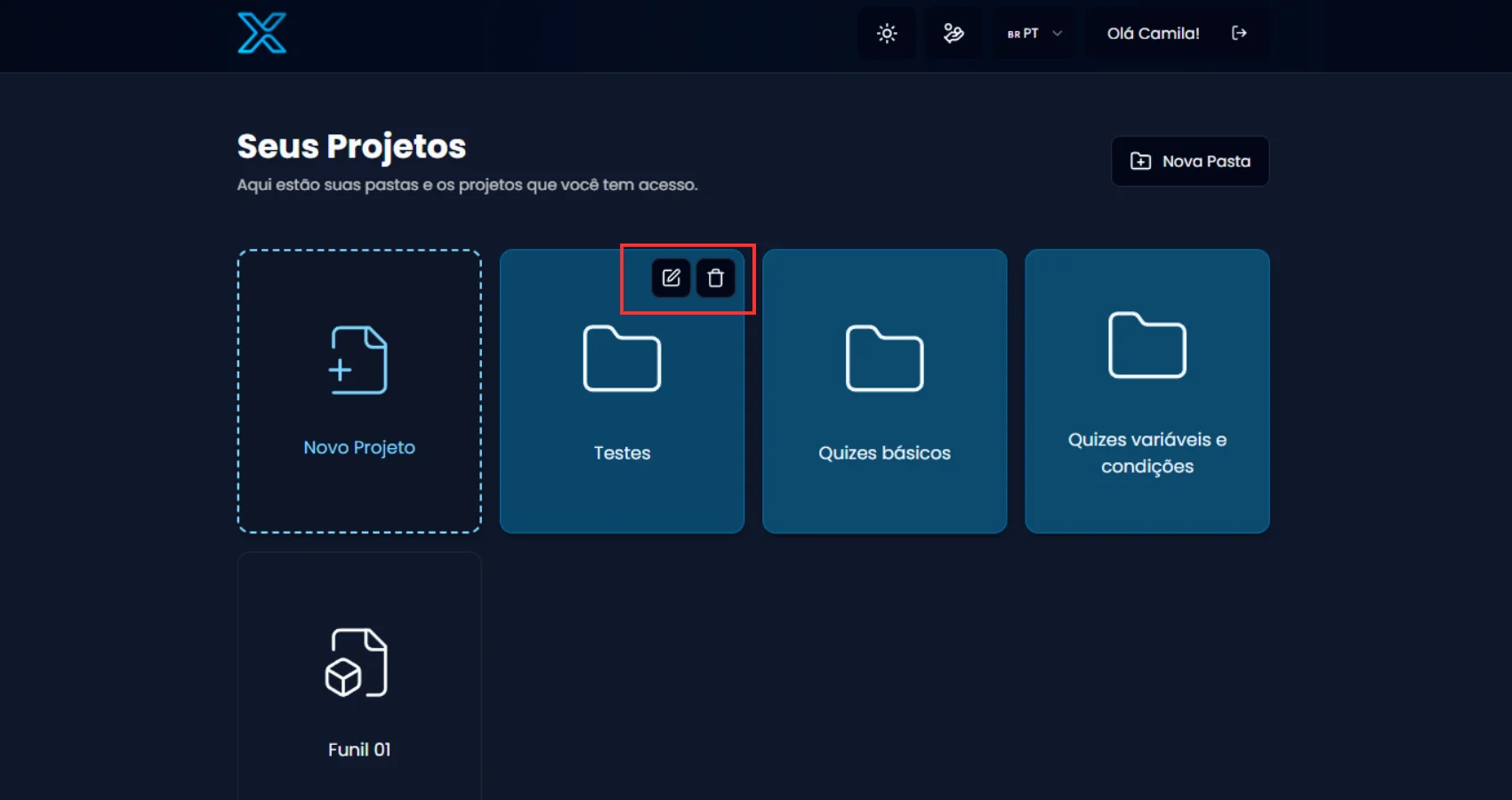 If you created a folder and then want to edit the name or remove it, this is also very simple within XQuiz.
Hover over the folder. Two icons will appear in the upper right corner of the folder.
**Edit folder name**
Click the pencil icon.
A small box will open for you to type a new name. Then just confirm.
**Delete folder**
Click the trash icon.
A confirmation message will be displayed. When confirmed, the folder will be permanently deleted.
**Attention!**
When deleting a folder, the funnels that were inside it are not deleted, they return to the main funnels screen.
If you created a folder and then want to edit the name or remove it, this is also very simple within XQuiz.
Hover over the folder. Two icons will appear in the upper right corner of the folder.
**Edit folder name**
Click the pencil icon.
A small box will open for you to type a new name. Then just confirm.
**Delete folder**
Click the trash icon.
A confirmation message will be displayed. When confirmed, the folder will be permanently deleted.
**Attention!**
When deleting a folder, the funnels that were inside it are not deleted, they return to the main funnels screen.